- Junior Division Coding - Contest Years 2010-2011 through 2024-2025 (15 Years)
- Junior Division Theory & Coding- Contest Years 2020-2021 through 2024-2025 (5 Years)
- Junior Division Theory - Contest Years 2010-2011 through 2024-2025 (15 Years)
- Junior Division Theory and Coding - Contest Year 2024–2025 (1 Year)
- Junior Division Theory & Coding- Contest Years 2010-2011 through 2024-2025 (15 Years)
- Intermediate Division Theory and Coding - Contest Year 2024-2025 (1 Year)
- Intermediate Division Theory - Contest Years 2010-2011 through 2024-2025 (15 Years)
- Intermediate Division Theory & Coding - Contest Years 2010-2011 through 2024-2025 (15 Years)
- Intermediate Division Theory & Coding - Contest Years 2020-2021 through 2024-2025 (5 Years)
- Intermediate Division Coding - Contest Years 2010-2011 through 2024-2025 (15 Years)
- Senior Division Theory and Coding - Contest Year 2022-2023 (1 Year)
- Senior Division Theory - Contest Years 2011-2012 through 2023-2024 (13 Years)
- Senior Division Theory & Coding - Contest Years 2011-2012 through 2023-2024 (13 Years)
- Senior Division Coding - Contest Years 2011-2012 through 2023-2024 (13 Years)
- Senior Division Theory and Coding - Contest Year 2020-2024 (4 Years)
Public and Personal Profile Guide
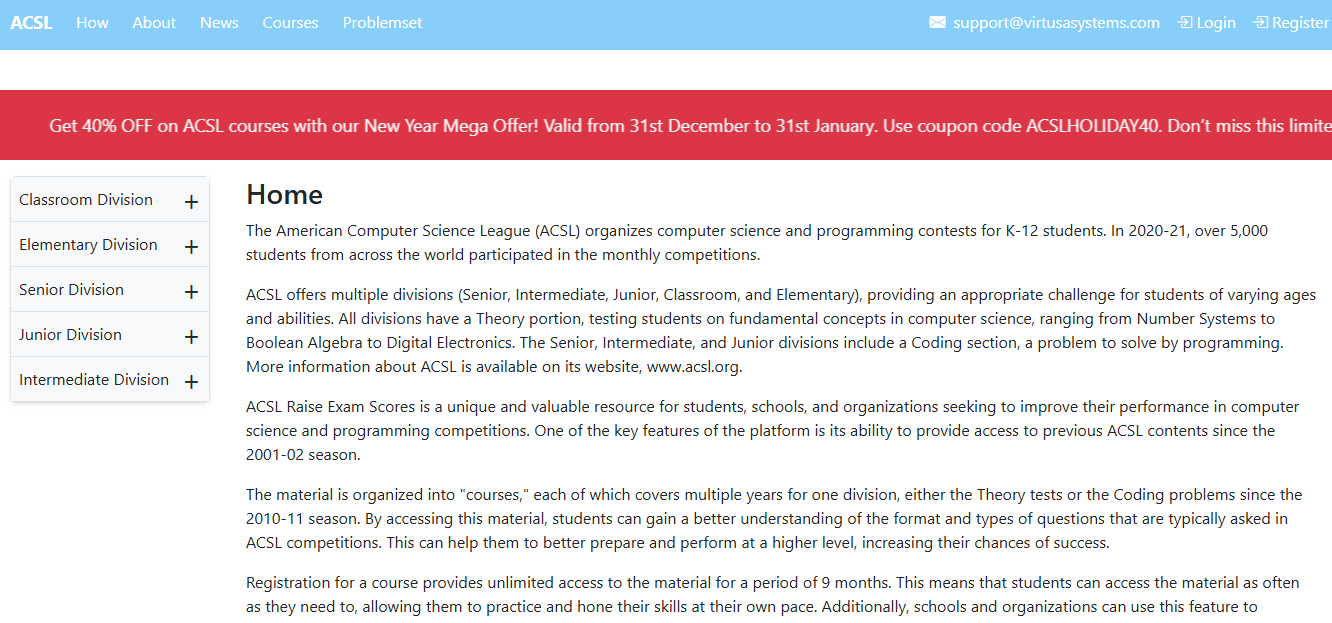
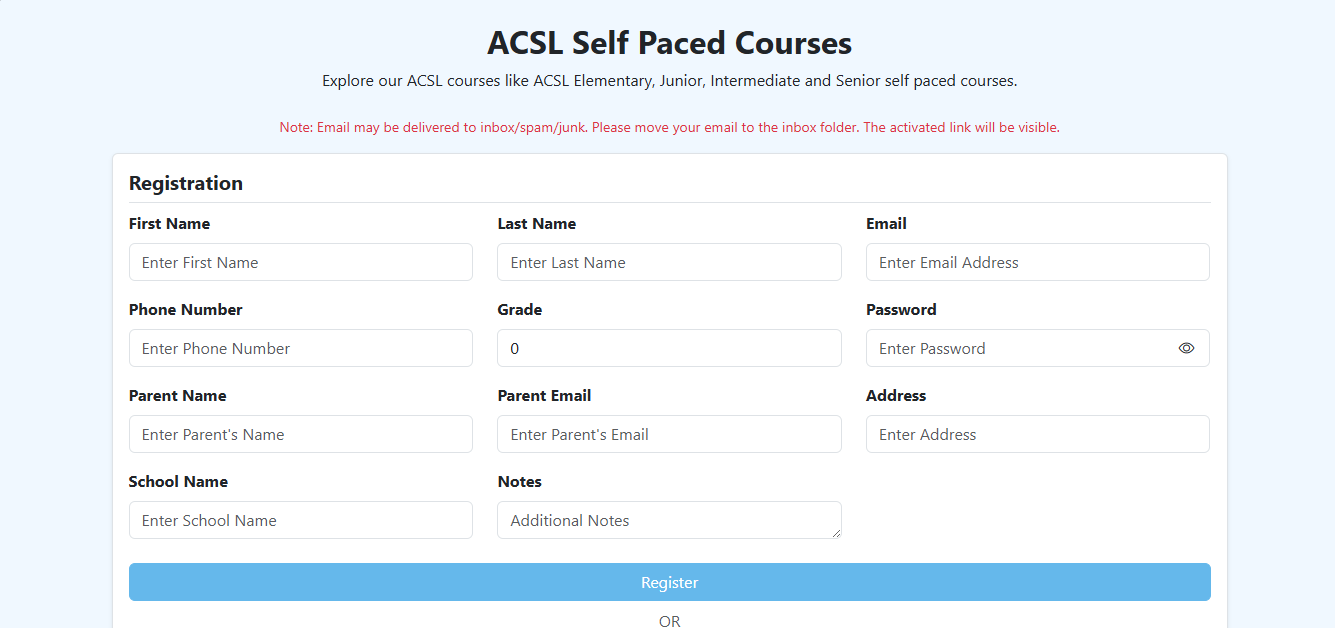
1. Register on page after filling appropriate details
Begin by navigating to the registration page. Fill in all required details such as your name, email address to create account.
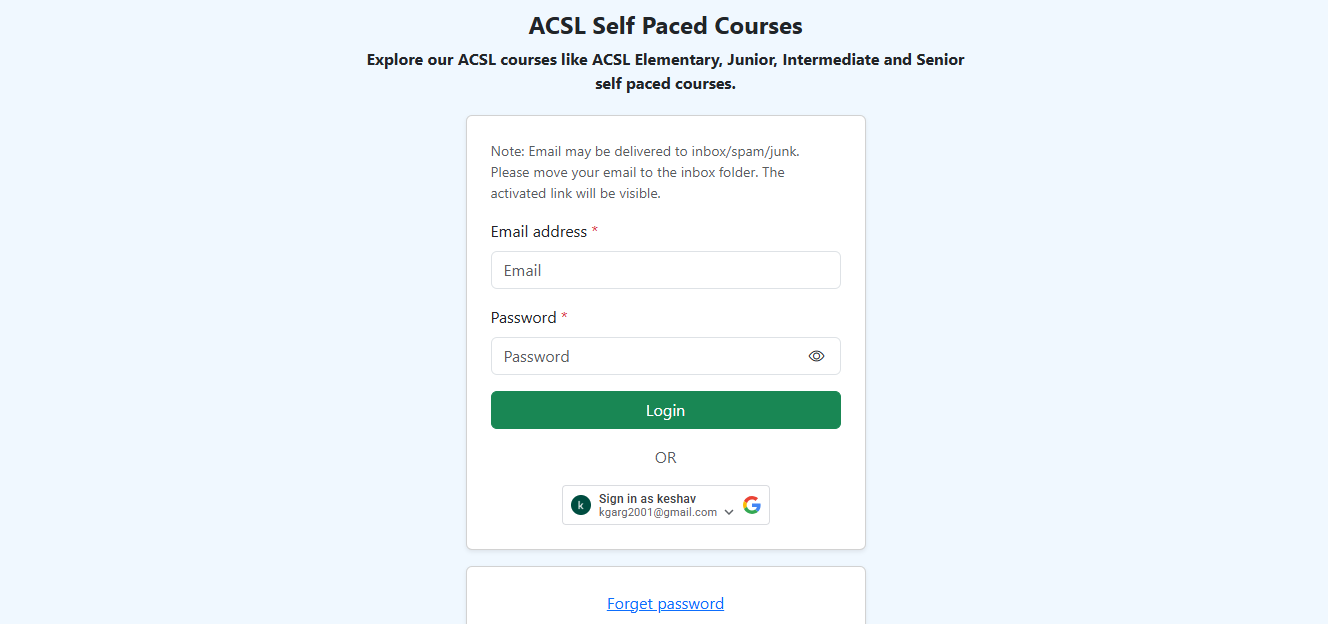
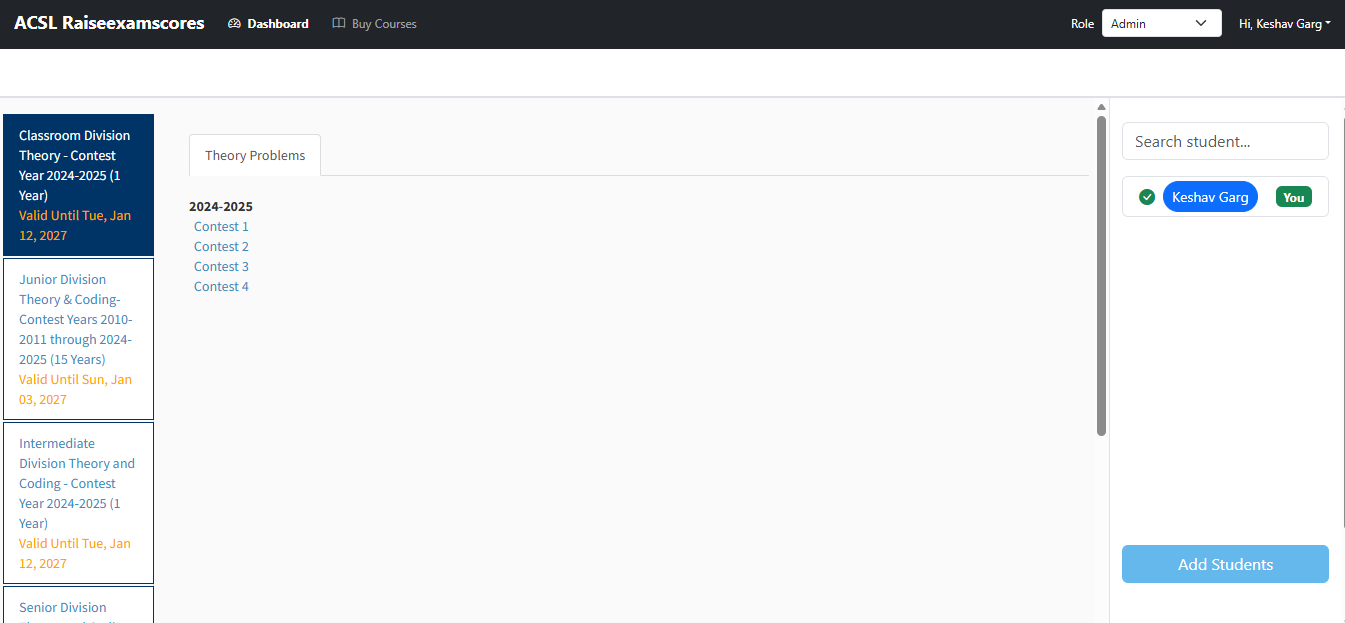
2. Login, you will be directed to the dashboard page
After successful registration, use your credentials to log in. You'll be automatically redirected to your personalized dashboard upon successful authentication.
3. Go to the account settings section
From your dashboard, locate and click on your name in the top-right corner. From the dropdown menu that appears, select "Account Settings" to access your account management options.
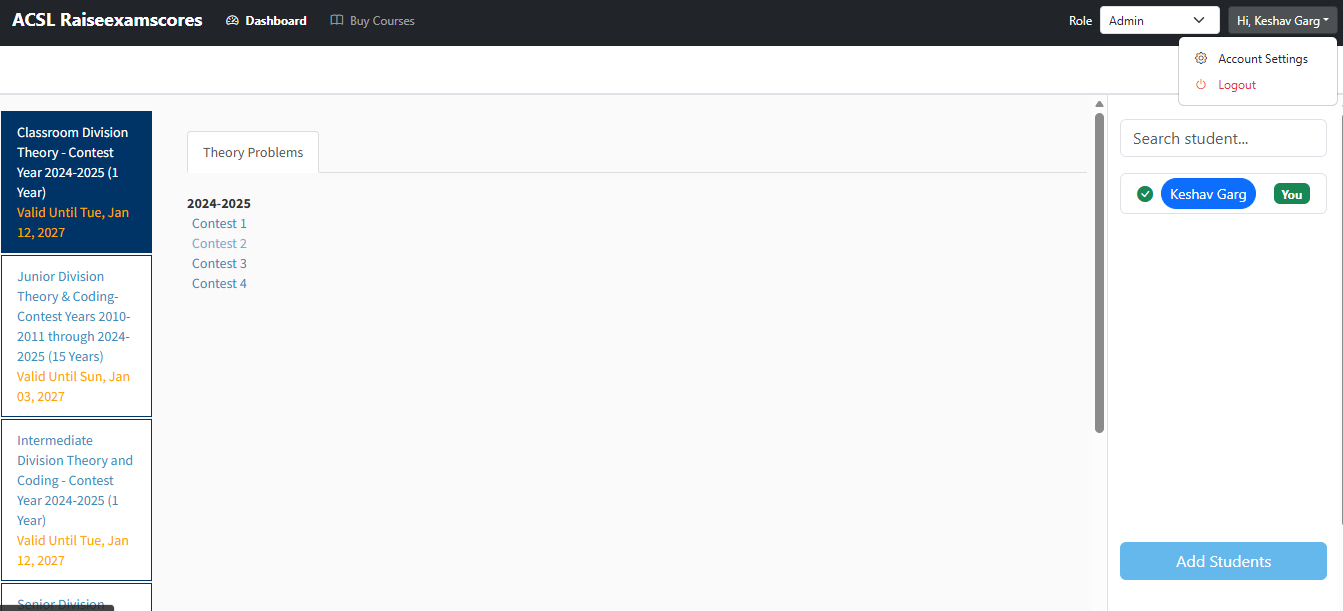
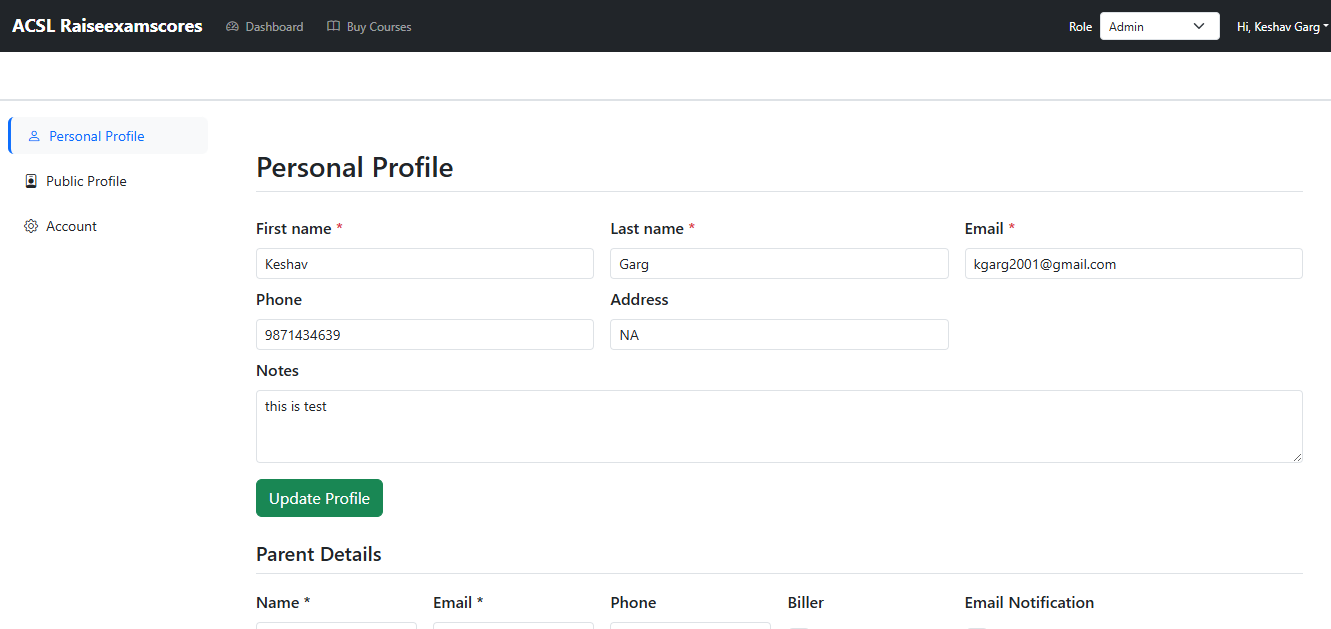
4. You will see Public and Personal Profile section on the left panel
Once in the Account Settings section, look at the left navigation panel. You'll find two important profile management options: "Public Profile" and "Personal Profile".
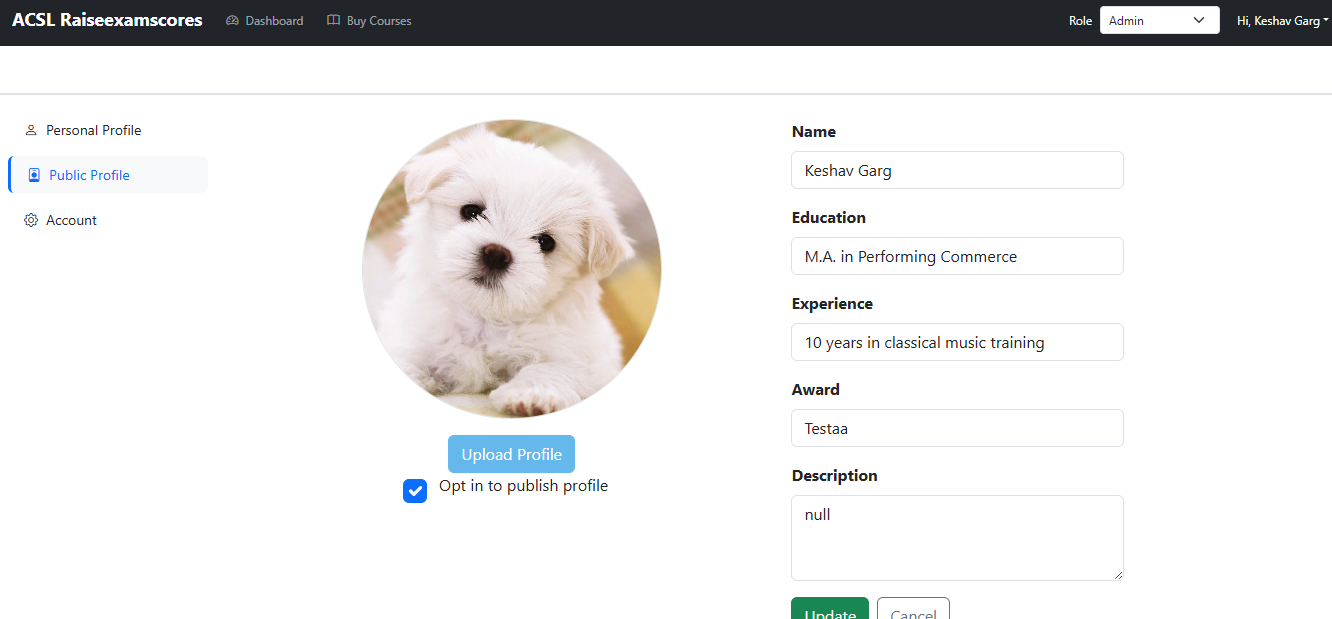
5. You can visit your Public Profile from the left panel
Click on the "Public Profile" option in the left panel. This section allows you to manage information that is visible to others, such as your display name and profile picture.
6. You can visit your Personal Profile from the left panel
Click on the "Personal Profile" option in the left panel.